You will require to have the modrinth app installed on your system. You will also need to download the latest stable version from https://git.dburridge.com/burridge/mundane-botc/releases.
Once you have installed and opened your modrinth app, connect your Minecraft account (probably your Microsoft account) which you can do by selecting the login box on the right side of the app.
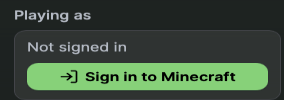
Once you are connected to your Minecraft account you can click the “+” icon on the left side of the application, then select "Install a Modpack".
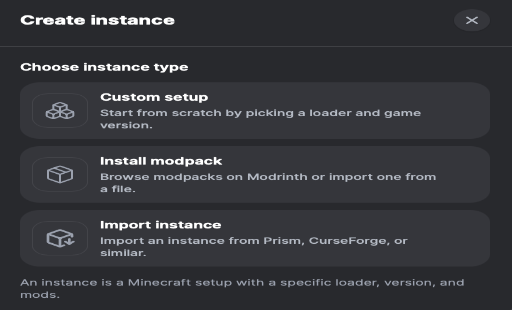
Select "Import Modpack"
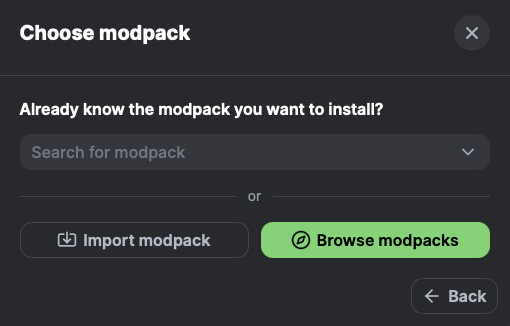
Select the modpack file you were asked to download at the beginning of this.
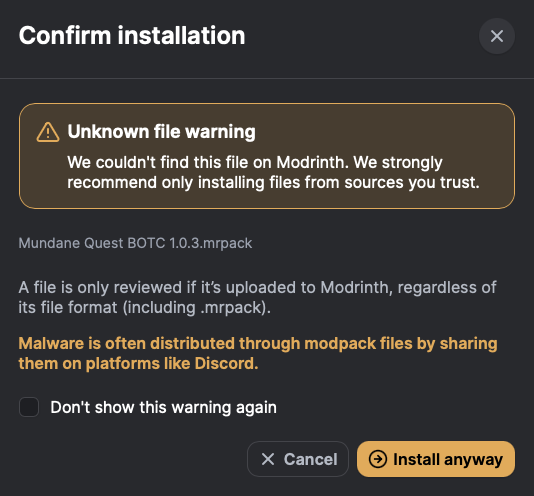
You will get the following warning screen. This is fine to continue, the reason is because the modpack is not hosted with modrinth.
It will take a few seconds to install, you can then just click “Play” to open your modded instance. Configure any client settings you might want to change from their defaults and then Click “Play Game”.
To connect to the server you will need to be whitelisted (the first time you are set to play anyway…)
Server IP: botc.mundane.quest:25565
It is advised you probably add the IP as a favorite so that you can easily connect for future sessions.